· 1 min de leitura
How to Set Up a Discord Ticket System
Build a private Discord support queue with Kabal’s Bot. Publish a support button, assign staff roles and save transcripts when tickets close.
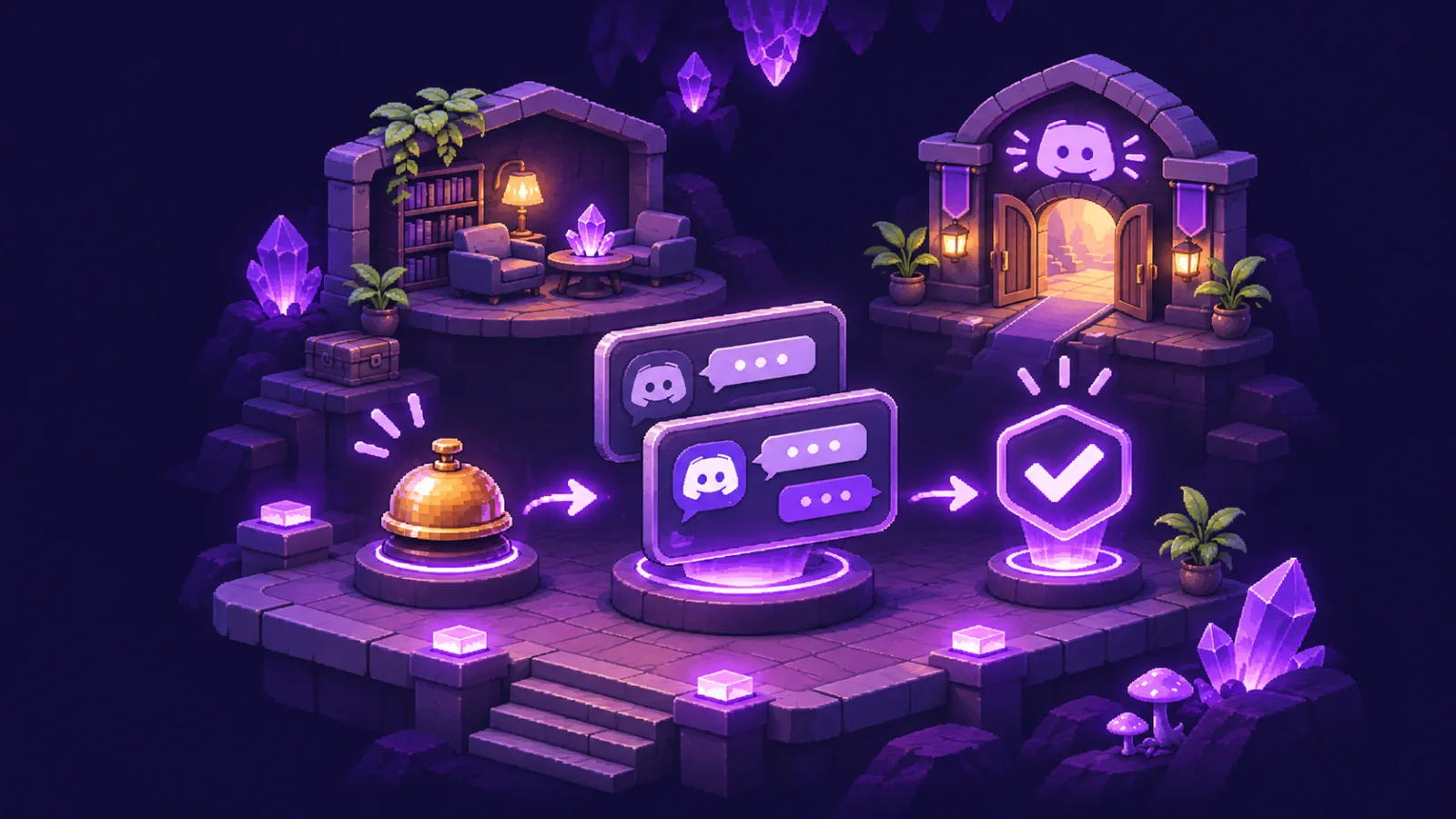
If support questions are getting lost in general chat, give members one place to ask for help. Kabal’s ticket panel opens a private channel for the member and your support team. Staff can claim the ticket so everyone knows who is handling it.
Prepare the support channels
In Discord, create a channel such as #open-a-ticket where members can see the panel. Create a Support role for the people who should answer. If you want a record of closed conversations, create a staff-only channel such as #ticket-logs.
Configure the ticket system
- 1Add Kabal from My servers, open your server and enable Tickets in the dashboard.
- 2Under Settings, select the support roles. Choose a category for ticket channels and a log channel if you want transcripts.
- 3Set the opening message. For example, ask the member for their issue and what they have already tried. Save your changes.
Publish and test the button
Open the Panel tab. Select #open-a-ticket, give the panel a clear title and set the button label to Create ticket. Save the settings, then publish the panel.
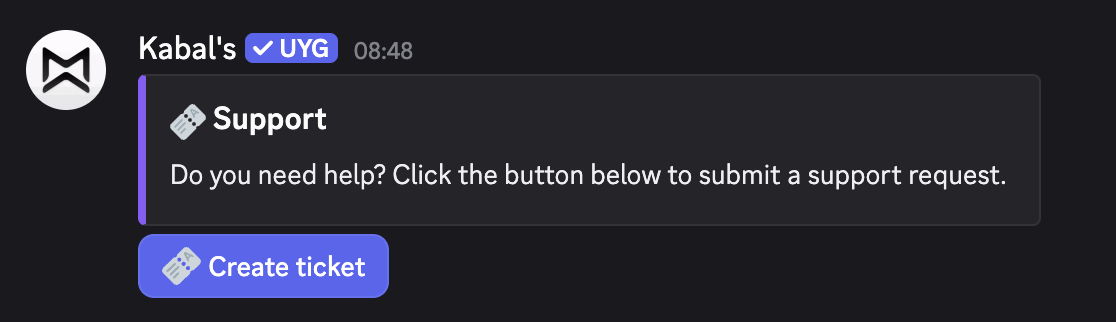
Test it from a regular member account. Open a ticket, check that a second regular member cannot see the new channel, and have a staff member claim and close it. If you selected a log channel, look there for the transcript. The dashboard’s History tab also shows recent tickets and their status.
If the panel cannot publish, check that Kabal can see the destination and send messages and embeds there. If clicking the button fails to create a ticket, check its channel management permissions and the selected category.
Explore Kabal’s community tools for the rest of your support setup.
Comunidade e suporte
Adicione o bot e ative os módulos no painel. Você pode começar de graça.