· 2分 読み
How to set up a Discord server: a step by step guide with Kabal’s Bot
Get a new Discord server ready in minutes with welcome messages, auto roles, verification, moderation and levels.
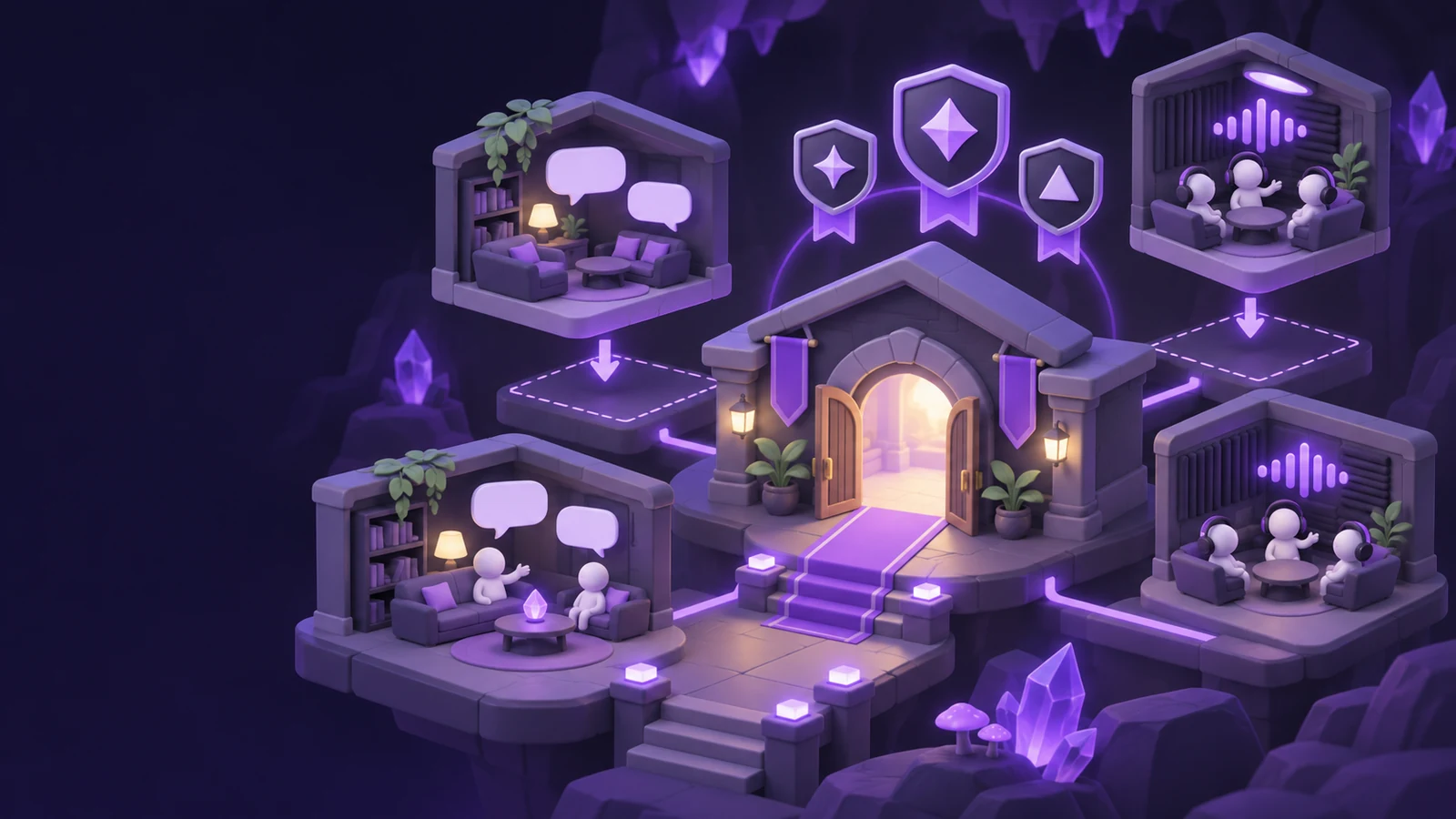
A good Discord server is one where a newcomer knows what to do in the first minute. In this guide we turn an empty server into a community with welcomes, roles, rules and moderation using Kabal’s Bot. No commands to memorize; every step happens in the web dashboard.
1. Add the bot and open the dashboard
Log in with Discord on My servers, pick your server and add the bot. The dashboard’s Overview page opens next; every plugin is turned on and off there.
2. Plan your channels
- #rules and #announcements: info channels only staff can post in.
- #welcome: where welcome messages land.
- #general and topic channels: where the conversation happens.
- #bot-commands: a separate channel so games don’t flood chat.
- #logs: an audit channel only staff can see.
3. Welcome new members
Open the Welcome page, pick a channel and write your message. You can use the member’s name and their member number. Premium servers also send an image card with a background and text you design.
Then use Auto role to give everyone who joins a “Member” role. A separate role for bots keeps them apart in the member list.
4. Add verification
Growing servers attract bot accounts. With Verification, new members can’t see the rest of the server until they press a button or solve a captcha, so waves of bots never reach chat.
5. Let members pick roles
Use Role menus to put game, notification or colour roles on buttons. Members take the roles they want themselves, and staff stop getting “can I have this role?” messages.
6. Set up moderation
- 1Turn on the slur, spam, invite and scam filters on the AutoMod page.
- 2Pick the #logs channel for Audit logs.
- 3Turn on Moderation; warnings, timeouts and bans are saved as numbered cases.
- 4Be ready for attacks with Guard and Server backups.
For the details, read our server protection guide.
7. Keep chat alive
Levels gives XP to members who chat; add role rewards at certain levels to make active members stand out. Economy brings Kabal coins, daily rewards and games like /mine. Remember to limit game commands to #bot-commands on the Commands page.
That’s it. See all features for more.
歓迎と役割
Botを追加し、管理パネルで使いたいプラグインをオンにするだけ。無料で始められます。